
Subsidiary Management
NOTE
In LumiotLoRaWAN, a Subsidiary is equivalent to the Application concept in LoRaWAN Network Server's native architecture. It represents a logical grouping of devices belonging to a specific Distributor. Subsidiaries allow compartmentalizing sensors by projects, physical locations, or the Distributor's own end clients, maintaining strict access control and telemetry separation.
Subsidiary Inventory
The Subsidiaries module displays the complete list of logical groupings created within the platform. If you are a SuperAdmin, you will see subsidiaries for all distributors; if you are a Distributor, you will only see your own.
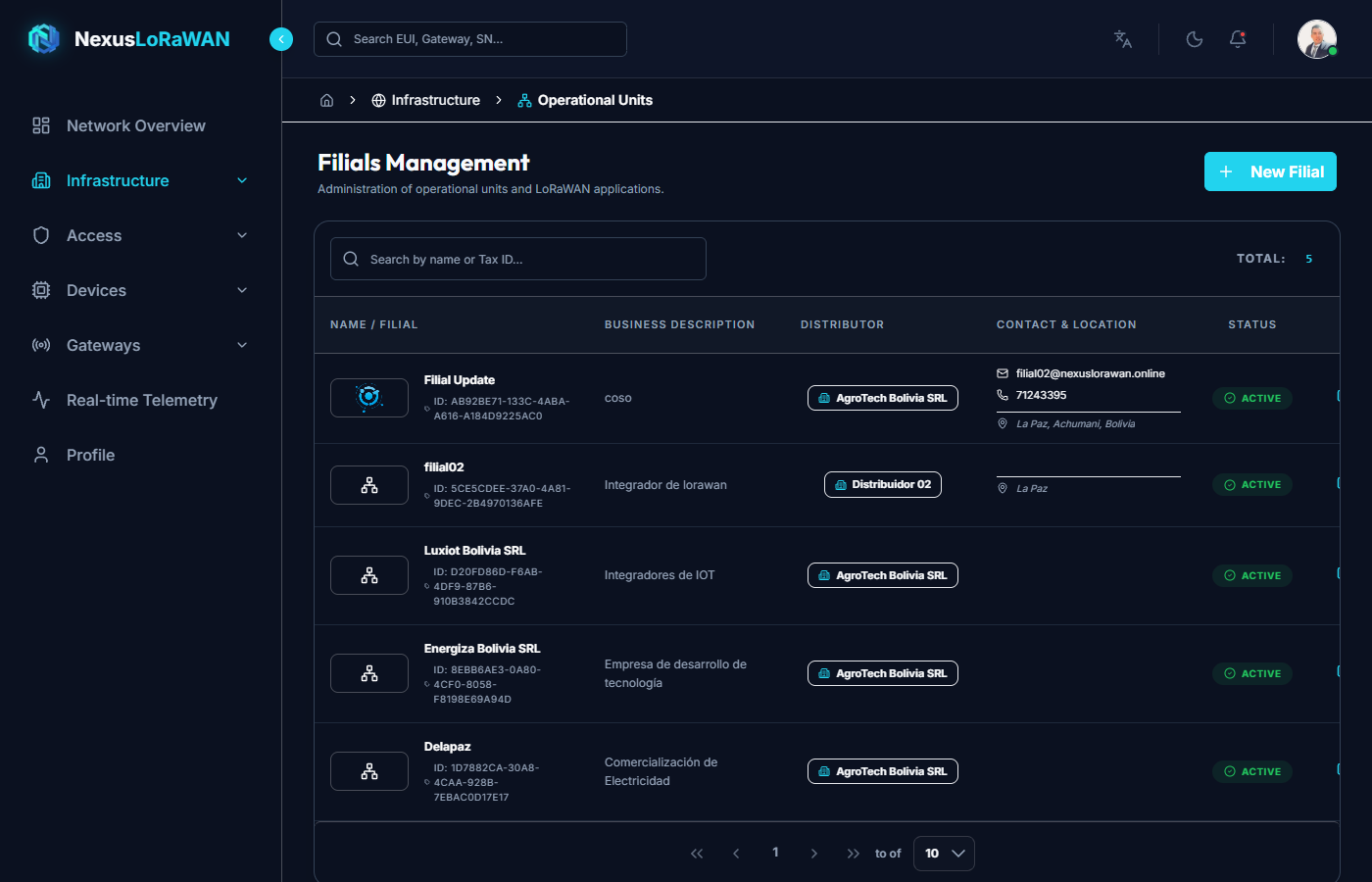
Interface Elements
- Top Bar: Contains the
+ New Subsidiarybutton and the general interactive search (supports search by name or description). - Identity Column: Displays the subsidiary's logo, its commercial name, and below it the
LoRaWAN Network Server ID(Application ID) auto-generated, fundamental for API integrations or debugging at the network layer. - Description Column: A brief synopsis of this subsidiary's purpose (e.g., "Humidity Sensors North Branch").
- Distributor (Tenant) Column: Shows through a label which corporate Distributor this subsidiary belongs to, ensuring visual traceability.
- Contact Column: Centralized email, phone, and physical address information (location geolocation).
- Status Column: Dynamic visual switch (
ActiveorSuspended). Suspending a subsidiary blocks sending and receiving payloads in LoRaWAN Network Server for all its internal devices. - Actions Column:
- 📋 Copy UUID: Captures the subsidiary's unique identifier to the clipboard.
- ✏️ Edit: Opens the full form to update configurations.
- 🗑️ Delete: Deletes the subsidiary (Warning: Requires no active devices inside).
New Subsidiary Registration
The + New Subsidiary button displays an advanced modal structured in tabs to facilitate data entry.
General Tab
Base Details:
Logo: Representative image of the site or project.Distributor *: Mandatory selection of the parent Tenant/Distributor. (Only visible for SuperAdmins; regular users will have it pre-selected and disabled).Name *: Primary application identifier.Tax ID / Email / Phone / Address: Set of inputs for tax identity registration and contact information.Description: Long text area to document the specific use cases for this subsidiary.
Operational Control:
Active: Allows creating the subsidiary in a preventively suspended state, useful for two-phase integrations.
Tags Tab
Here you can add dynamic metadata labels. At the Subsidiary level, tags are extremely powerful because they are inherited in the devices' MQTT payload, which is vital for routing data to your CRM or external billing systems.
Subsidiary Editing
Clicking the Edit icon ✏️ displays the same interactive modal with the subsidiary's preloaded data, allowing you to update in real-time. Like creation, it is organized in two main tabs.
Edit - General Tab
Allows adjusting the corporate identity and, more importantly, Suspending or Reactivating the subsidiary through the switch in the Operational Control section.
Edit - Tags Tab
You can inject or remove metadata on the fly, which will propagate immediately to the Network Server without needing to restart any network connection.