
Active Devices (Operations)
NOTE
The Active Devices module is the operational heart of LumiotLoRaWAN. An "Active" device is one that has successfully completed the 2-Phase Provisioning: It was pre-registered in the Whitelist, and a user has "claimed" it by assigning it a location and a Profile. These devices are synchronized with the LoRaWAN Network Server network and are capable of transmitting telemetry.
Active Inventory
This view lists all sensors currently operating in the field.
Upon entering this view, you will find a high-level summary known as the Mini Dashboard, which offers a quick glance at the health of your fleet:
- 🟢 Online: Devices that have successfully transmitted data recently.
- 🟠 Offline: Devices that have exceeded their maximum expected transmission interval.
- 🟡 Never Seen: Provisioned devices that have never completed their first JOIN to the network.
- 🔵 Total Registered: The total universe of devices associated with your account.
Interface Elements
- Device Column: Shows the custom Name assigned to the sensor, its specific model, and the
DevEUI. - Network Connection: Indicates the communication protocol (usually
LORA) and the Device Profile it is utilizing. - Location: Shows the Subsidiary it belongs to and its exact geolocation (Latitude / Longitude).
- Status Flags:
EnabledSwitch: Allows pausing packet reception for this device specifically.Status: Green dot if the device has connected recently; red dot if it is offline or has lost communication.
- Actions:
- ⬇️ Send Downlink: Opens the modal to queue a radio frequency message to the sensor.
- 📊 Monitor (Icon): Navigates to the advanced device console.
Phase 2: Claiming a Device
To move a sensor from the Whitelist to the Active list, click on the + Link Device button. This process is known as Claiming.
The wizard is divided into 4 tabs to ensure a complete and secure setup.
1. General Tab (Identity)
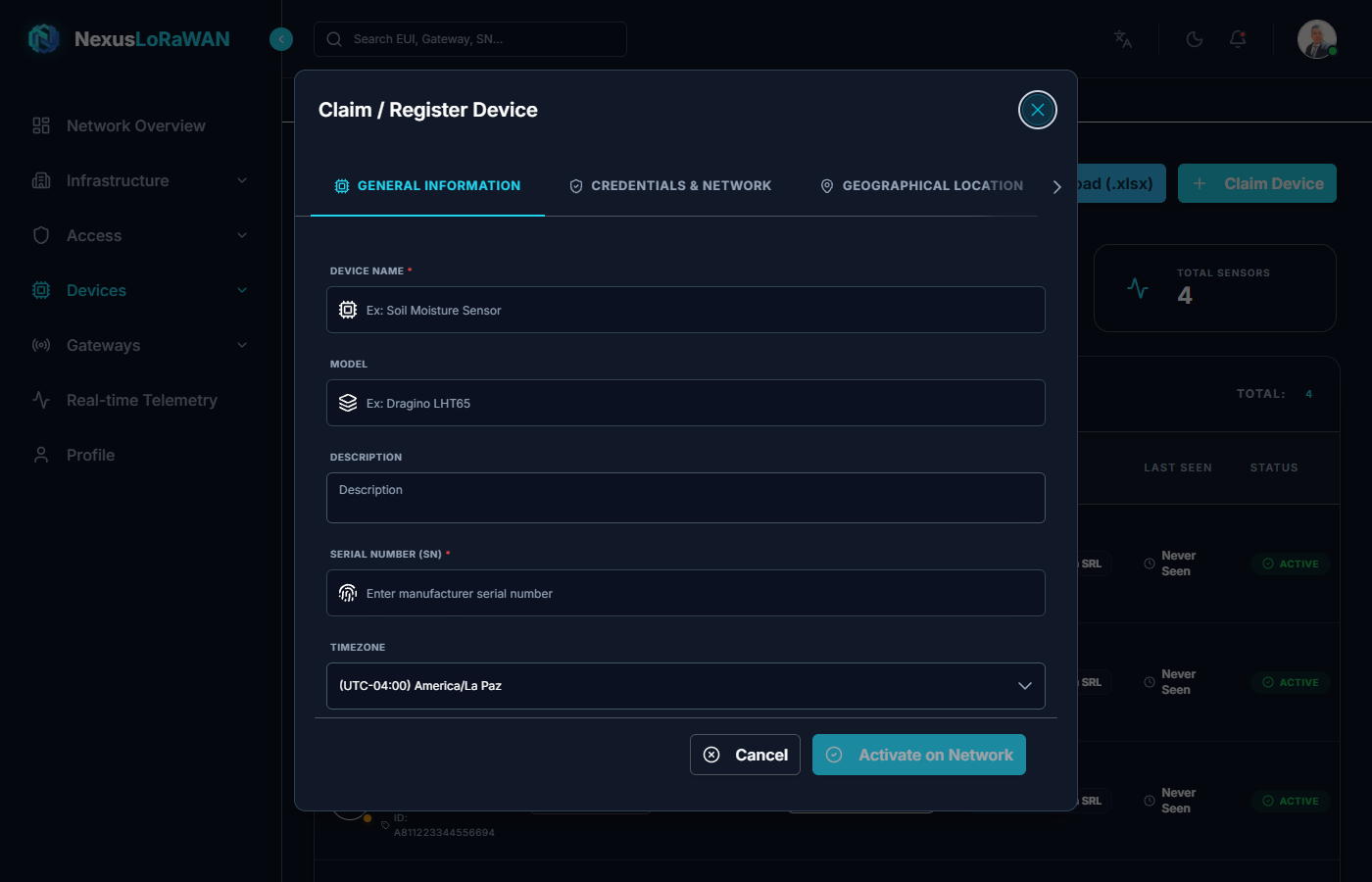
- Serial Number (SN) *: You must enter the SN of the physical device you hold. The system searches the Whitelist; if the SN doesn't exist, the device cannot be activated.
- Name *: A friendly identifier (e.g., "Pump Room Temp").
- Description: Technical details or installation notes.
2. Network Tab (LoRaWAN Settings)
- Device Profile *: Select the technical template this sensor will use.
- Protocol *:
LORAfor standard LoRaWAN. - Save Strategy: Controls how data is persisted in TimescaleDB.
3. Location Tab (Geolocation)
- Allows positioning the sensor exactly on the map by dragging the pin or entering coordinates manually. This data feeds the heat maps and geographic dashboards.
4. Metadata Tab (Tags)
- Inject custom variables. Very useful for grouping devices logically (e.g.,
Floor: 3,Zone: Sector A).
Once you complete the wizard, the ms-devices microservice orchestrates a gRPC call to LoRaWAN Network Server. If everything is correct, the device connects to the network instantly.
Bulk Upload (Activation via Excel)
Just like in pre-registration, you can activate hundreds of sensors simultaneously using an Excel matrix.
- Download the template from the top buttons.
- Fill in the data (SN, coordinates, Profile ID, etc.).
- Upload the file using the Bulk Upload button.
The system will claim all valid Serial Numbers in bulk, positioning them on the map and configuring their profiles automatically.
Sending Downlinks
You can send configuration payloads or remote activation commands (Downlinks) directly from the list by clicking the downward arrow button.
- FPort *: Target port on the device (1-223).
- Format *: Can be raw
Base64orJSONif the device's codec supports encoding. - Payload: The message content.
Only roles with command permissions (Clients, Integrators, SuperAdmins) can execute downlinks. Operators are strictly denied.