
Geographic Gateway Map
NOTE
The Gateway Map view is your visual command center for monitoring the physical distribution of the network. Unlike flat tables, this geolocated interface allows you to understand LoRaWAN coverage density, locate dark zones, and visualize infrastructure nodes (Antennas) in a unified way. Everything rendered in high fidelity thanks to the Mapbox/Leaflet engine.
1. Interface and General Controls
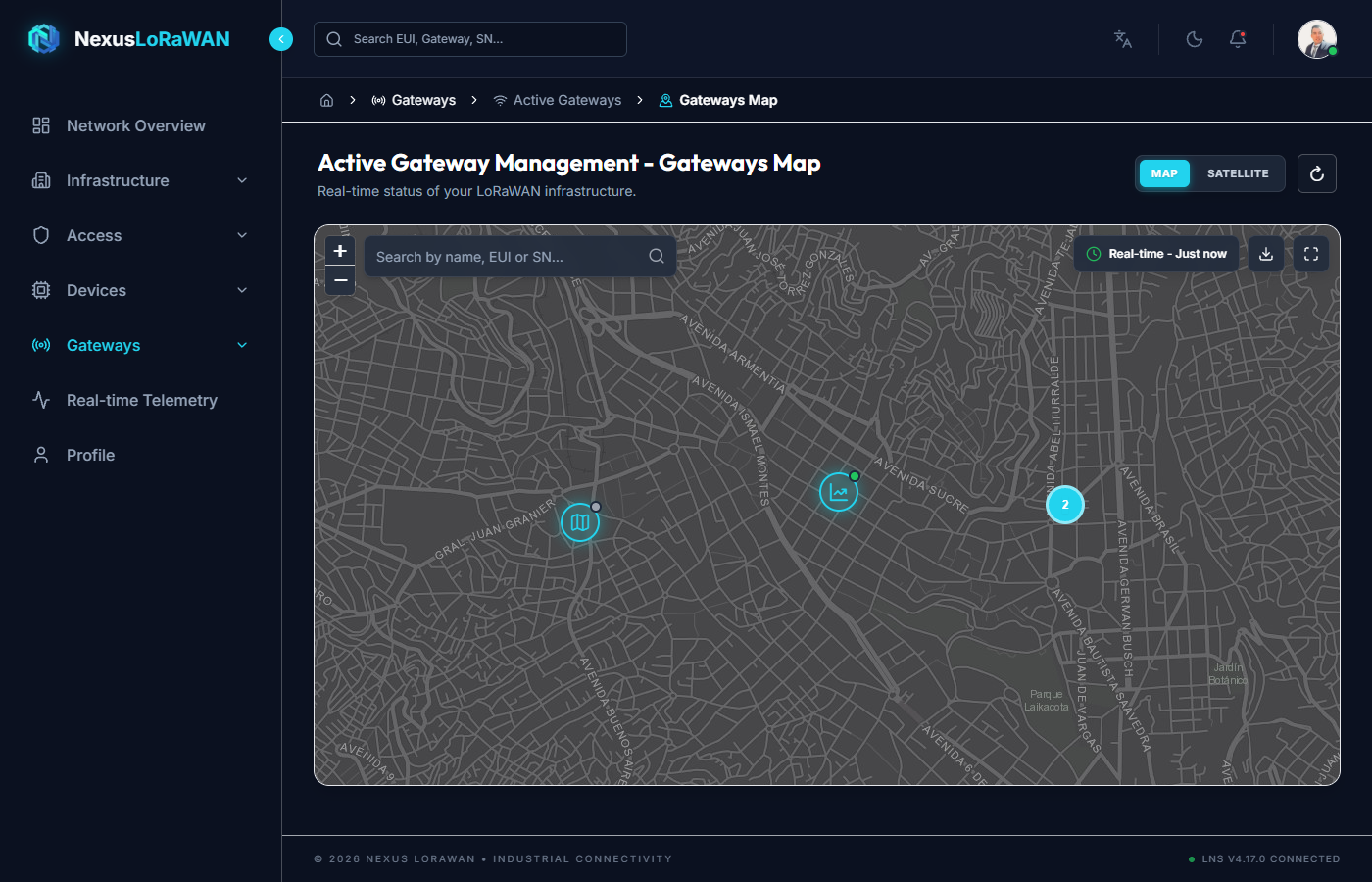
Upon entering the Gateway Map, you will see all your equipment strategically deployed according to their GPS coordinates. You have a set of controls to interact with the mapping:
- Zoom Controls (+ / -): Typically located in the corners of the view. Allow you to zoom out to see the entire country (macro view) or zoom in to street level (micro view).
- Layer Switcher (Map / Satellite): Buttons on the canvas that let you dynamically toggle between the Urban Map view (streets and avenues, ideal for the city) and the Satellite view (real topography, ideal for rural, mining, or agricultural areas).
- "Center on Coverage" Control: Intelligently readjusts and zooms the map (Bounding Box) so that all active antennas fit perfectly on your screen, no matter what continents they are on.
2. Events and Real-Time Dynamism
The map is connected to the asynchronous messaging core of LumiotLoRaWAN. This means it is a "Live" map:
- Status Change: If a Gateway disconnects or stops emitting heartbeats, the color of its marker (Pin) will instantly change to red, immediately alerting operators.
- Traffic Micro-Animations: When an antenna is intensely transferring telemetry packets, the system may trigger a subtle pulse or aura around the Pin, denoting "Live Traffic".
3. Equipment Inspection
Hover: Quick Glance
By positioning and holding the mouse pointer (Hover) over any marker on the map, the system will immediately display a floating native Tooltip with:
- Friendly Gateway Name and its ID.
- This action is super fast, designed to do an agile sweep of nearby antennas without having to click unnecessarily.
Fixed Click: Inspection Card
If you left-click on a marker (Pin), it will anchor and invoke the Gateway's Summary Card:
- Vital Status (Green/Red Dot): Instantly confirms if the antenna has an active link.
- Equipment Name: The name assigned by the subsidiary or integrator (e.g.,
GW-RAK-OFFICE). - Gateway EUI: Its official cryptographic address on the Network Server.
- Last Connection: Calculated in high-precision relative format (e.g., 7 seconds ago). This validates that the physical infrastructure is emitting data to the REST API Gateway right at this moment.
- "View Details" Button: By pressing this powerful blue button, you will leave the map and the system will teleport you directly to the Gateway Monitor, where you can audit the LoRaWAN traffic console and raw radio frequency spectrum charts.