
User Management
NOTE
User management in LumiotLoRaWAN is heavily based on hierarchical Role-Based Access Control (RBAC). A user not only possesses an access level, but their visibility and permissions over the LoRaWAN network are strictly confined to the entity they belong to (Distributor or Subsidiary).
Main Inventory
The Users module provides you with a comprehensive audit view of all individuals with system access. The visible information is automatically filtered depending on your own privilege level.
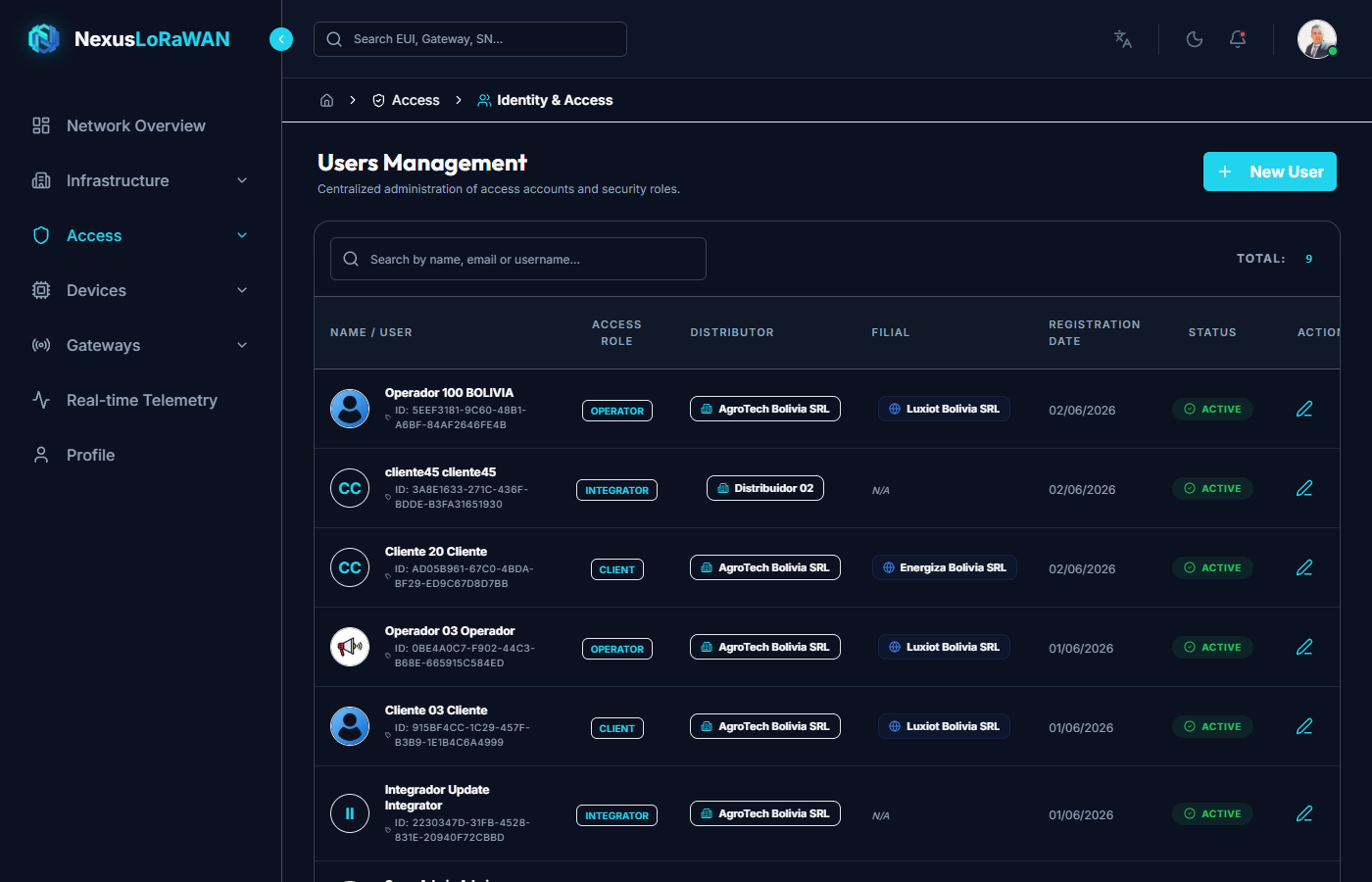
Interface Elements
- Top Bar: Contains the
+ New Userbutton and a universal search (by first name, last name, email, or username). - Name Column: Displays the profile photo (or auto-generated initials if no photo exists), the full Name, and the user's
LoRaWAN Network Server IDassociated in the underlying native network. - Role Column: Visual label indicating hierarchical privileges (Super Admin, Integrator, Client, Operator).
- Distributor (Tenant) Column: Shows the corporate name of the company the user belongs to.
- Subsidiary Column: If the user is at a tactical level (e.g., Operator), indicates which specific Subsidiary their access is restricted to.
- Registration Column: Date the account was created.
- Status Column: A visual switch indicating whether the user is
ActiveorSuspended. If suspended, their login is blocked at the API Gateway level and in the native Network Server console. - Actions Column:
- ✏️ Edit: Modifies credentials, personal information, photo, or changes the access level (Role).
- 🗑️ Delete: Permanently deletes the user. (Note: You cannot delete yourself or other SuperAdmins).
New User Registration
The corporate user registration process is shielded to ensure their network context remains secure. Clicking + New User opens a modal with two main sections.
General Tab (Personal Information)
- Photo: Upload tool (drag & drop or file selector) for the profile picture. Accepted formats:
PNG,JPG,WebP. - First and Last Name *: Formal identity of the person.
- Email *: Contact email for notifications.
- Username *: Unique identifier used to log in. Once created, it cannot be modified (this username is injected directly into the LoRaWAN Network Server database).
- Phone: (Optional) Contact number.
- Language: Dropdown select to force the default interface language.
Español: Will force the entire interface (VitePress/Vue) to Spanish for this individual, includinges.jsondictionary translations.English: Will instantly translate modules to English (en.json).
Security Tab (Access Control)
This is the most critical section of the Multi-Tenancy system.
- Role *: Determines which views and operations the user can perform. Available options vary based on your own privileges.
Super Admin: God Level. Has global access to all distributors, all subsidiaries, gateways, and devices on the platform. (Only available if you are a Super Admin).Integrator: Equivalent to Tenant Administrator. Manages a single Distributor, able to create subsidiaries, register gateways and sensors.Client: Subsidiary Administrator. Cannot see the Distributor's configuration, only manages their own sensors operationally.Operator: Read-only level. Ideal for end users who only need to view dashboards, charts, or monitor the device map, without the ability to send destructive commands.
- Password: Cryptographic key to access the platform (encrypted using the secure Argon2id standard).
- Distributor *: Select that forcefully assigns the user to a Tenant.
- Usage: If you create an
Integratorrole, this select indicates which company their control will be limited to.
- Usage: If you create an
- Subsidiary *: Select to link the user to a specific project.
- Usage: If you create an
Operatorrole, this select forces the user to only see sensors grouped in that branch or project, absolutely hiding the rest of the network.
- Usage: If you create an
User Editing
Clicking the Edit icon ✏️ gives you access to an interface identical to creation but with controlled destructive capabilities.
Edit - General Tab
Here you can correct any typos in the email or change the language. Note: The Username input will appear permanently locked for security.
Edit - Security Tab
You can change the password if the user has forgotten it (leaving the input empty to not alter it), or more drastically, promote or demote their Role or change their Subsidiary. When saving, the system will intercept these changes and inject the new restrictions via gRPC to LoRaWAN Network Server instantly.