
Device Pre-Registration (Whitelist)
NOTE
The Device Inventory serves as a Whitelist. According to best security practices (2-Phase Provisioning), sensors cannot join the LoRaWAN network directly without first being authenticated by the system. This module allows Integrators and SuperAdmins to digitally load the purchased devices into the Lumiot platform before physically sending them to the client.
General View
Here you will find a list of all devices that have been acquired but are not yet operational. In this state (preregistered), the device exists strictly in the Lumiot PostgreSQL database, but has not yet been synchronized with the LoRaWAN Network Server network server.
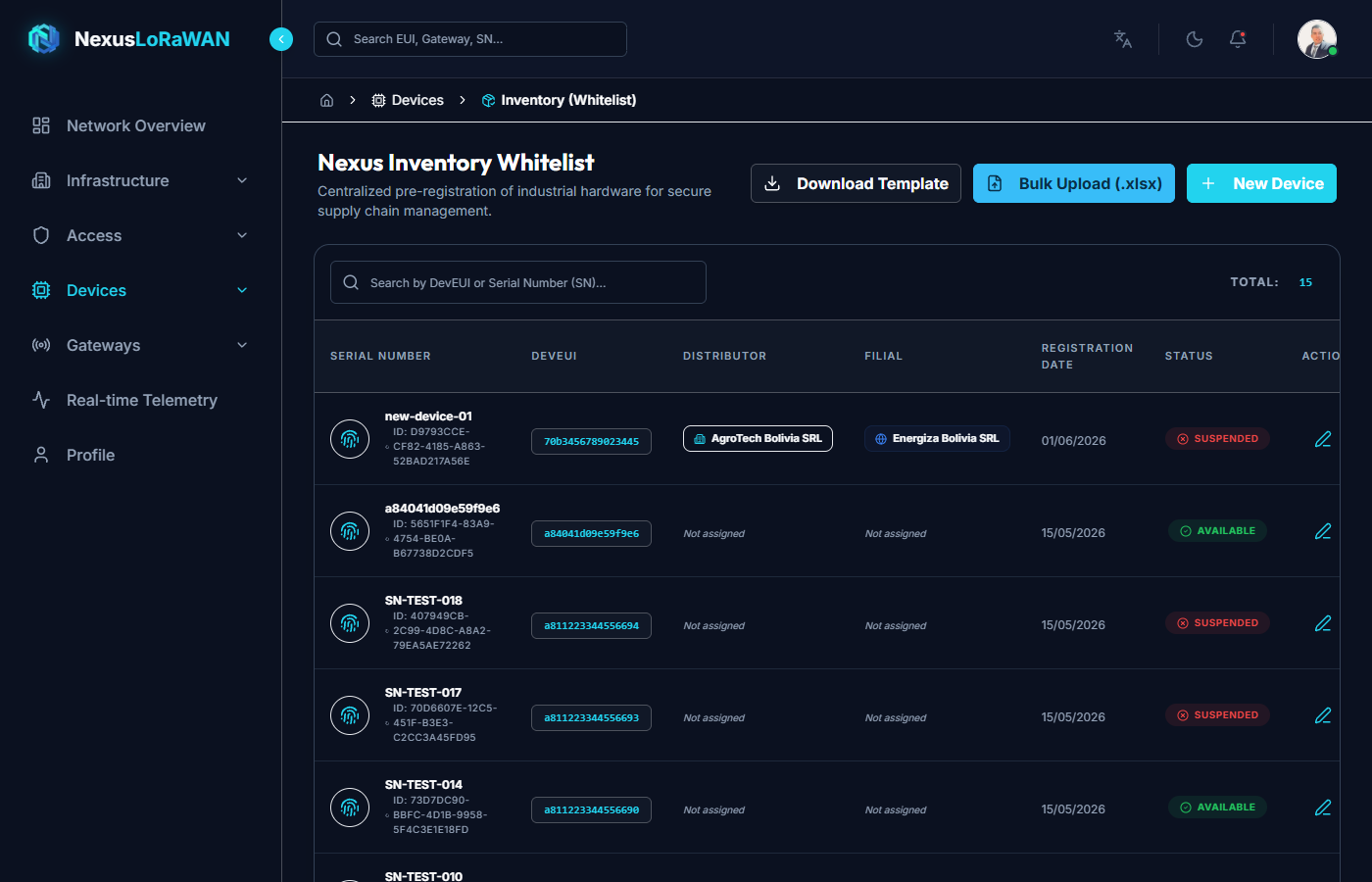
Interface Elements
- Top Actions:
Download Template: Downloads the official Excel template required for bulk uploading.Bulk Upload: Allows dragging an Excel file with hundreds of devices simultaneously.New Device: Allows registering a single sensor manually.
- Device Column: Shows the Serial Number (
SN) and theDevEUI. The Serial Number is the physical code printed on the sensor box; the end client will need it to "claim" the equipment. - AppKey Column: The 128-bit AES cryptographic key. For security, it is stored encrypted.
- Assignment Column: Indicates which Distributor (Tenant) bought these devices, and to which Subsidiary they were assigned.
- Actions:
- ✏️ Edit: Allows correcting typos in the DevEUI or assigning the device to another Subsidiary.
Single Device Registration
If you only need to add one or two sensors, you can use the manual form by clicking New Device.
- Serial Number (SN) *: Required. Unique code for the end client.
- DevEUI *: Standard 64-bit IEEE identifier.
- AppKey: Mandatory for OTAA (Over-The-Air Activation) sensors.
- Distributor & Subsidiary: Allows pre-assigning where this device belongs. If the Subsidiary is selected here, the client will immediately see the device as available to claim.
Bulk Registration (Excel Upload)
The true power of this module lies in its ability to process hundreds of sensors in seconds, ideal for large projects or wholesale purchases.
- First, click Download Template. You will get an Excel file similar to this:
- Fill in the columns with the data provided by the hardware manufacturer. Only
snanddevEuiare strictly required (along withenabled: TRUE). - If you already know the internal UUIDs of your Tenant and Subsidiary, you can paste them into the template to automatically assign thousands of sensors to a specific client.
- Save the file and click on Bulk Upload.
Drag the .xlsx file into the dashed box. The system will process the file, validate that there are no duplicate DevEUIs in the network, and create the whitelist.
Editing and Correcting
Did you make a mistake typing an AppKey? No problem. Since the device is in the preregistered phase and not yet transmitting data, you can edit it freely.
If a device has already been claimed by a client and moved to the "Active Devices" list, it will disappear from this Whitelist and its cryptographic parameters can no longer be edited from here.