
Active Gateways
NOTE
The Active Gateways view is the operational command dashboard for your entire LoRaWAN network infrastructure. Here you manage the antennas that have already passed pre-registration and are transmitting sensor information to the Network Server (LoRaWAN Network Server). All connection status you see here is synchronized in Real-Time.
1. Main Dashboard and Real-Time Metrics
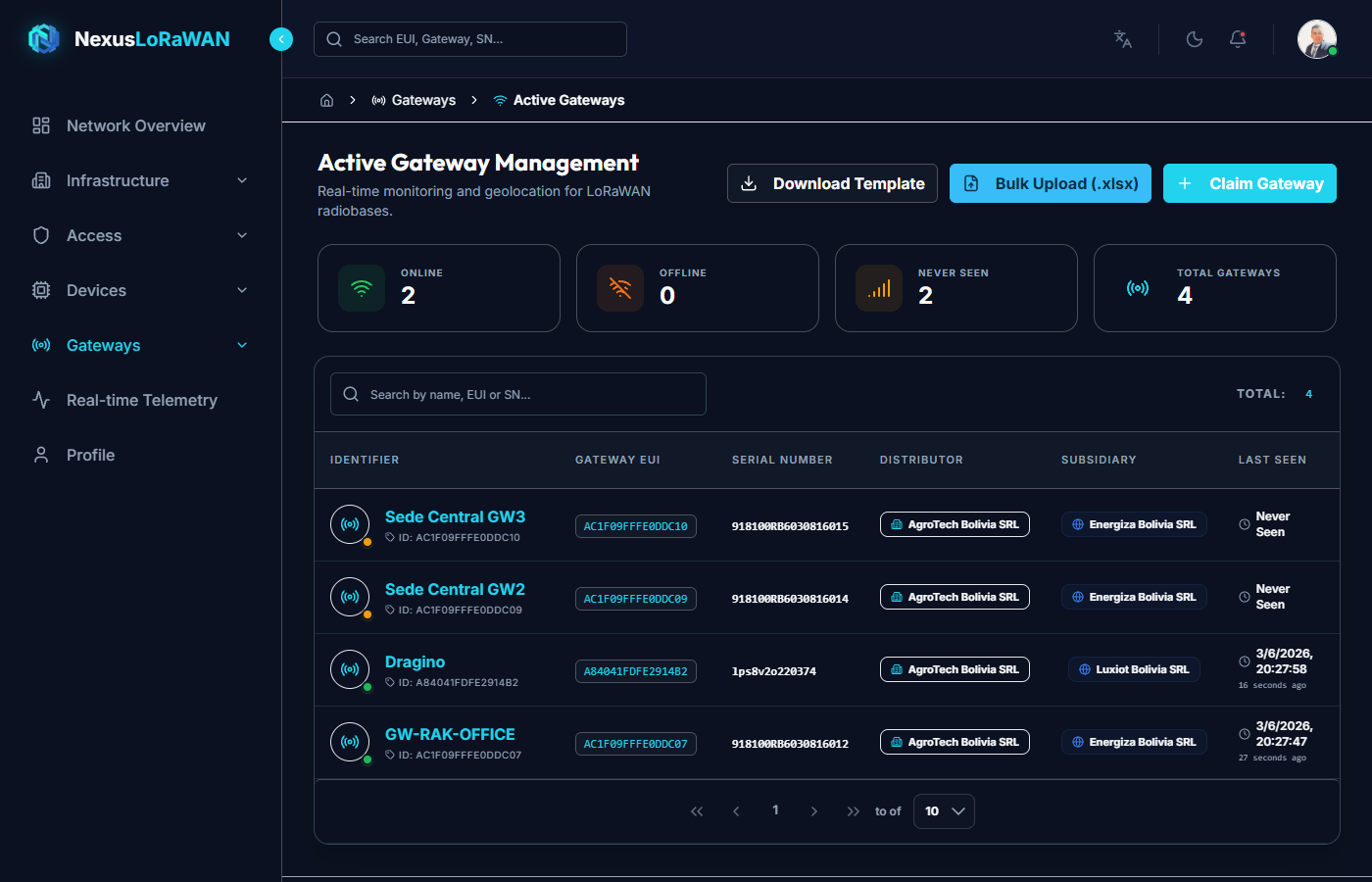
Upon entering this view, you will find a high-level summary known as the Mini Dashboard, which offers a quick glance at the health of your gateway fleet:
- 🟢 Online: Gateways that have successfully transmitted their status recently.
- 🟠 Offline: Gateways that have exceeded their maximum expected interval without transmitting.
- 🟡 Never Seen: Provisioned gateways that have never established a connection with the network.
- 🔵 Total Registered: The total universe of antennas associated with your account.
Table Columns
- Identifier (Name and EUI): Shows the friendly name of the antenna and its MAC Address (DevEUI) in code format. By clicking on the name, you will be redirected to the Gateway Monitor route for a deep analysis of its frequencies and live traffic.
- Tenant / Subsidiary: Represents which wholesale company and which operational site or branch (with their respective logos and colors) the gateway belongs to.
- Last Connection: Formatted as relative time ("5 minutes ago") and exact date. Reactive update.
- Status:
Active: Emitting and receiving on the network.Suspended: Equipment logically blocked by the administrator.
- Actions:
- ✏️ Edit: Opens the gateway properties editing modal.
- 🗑️ Delete: Unlinks the antenna from the Network Server and returns it to the inactive inventory (pre-registered).
2. Link Gateway (Multi-tab Modal)
Pressing the Link Gateway button launches a modal structured in four logical tabs (Wizard) to maintain configuration order:
Tab 1: General
Basic visual metadata is defined here:
- Name *: Required input. It is the name that will appear on maps and reports (e.g., "100 ft Tower").
- Description: Free text to add integrator annotations.
- Serial Number (SN) *: Here is the magic of activation. You enter the
snand, instantly (On-blur), the system searches the Inventory (Whitelist).- ✅ Green Check: The SN exists, it is linked and locks cryptographic inputs to prevent errors.
- ❌ Red Cross: The SN is not pre-registered and blocks the save button.
- Status Switch: To logically enable or disable the antenna.
Tab 2: Network / LoRaWAN Network Server
Direct configurations that will travel to the LNS:
- Distributor (Tenant) * and Subsidiary *: To isolate the sovereignty of the antenna to a single end client.
- Gateway EUI *: Input locked by default. The backend extracts it automatically based on the verified SN, preventing human typing errors.
- Protocol: Select (LoRaWAN, MQTT Bridge, Cellular).
- Statistical Interval: Defines every how many seconds the antenna will emit its health status (Heartbeat).
Tab 3: Geographic Location
Geospatial interface powered by Leaflet:
- Search (Top magnifying glass): Enter the physical address and the system will calculate latitude/longitude automatically.
- Coordinate Inputs: Numeric boxes for ultra-precise inputs from GPS.
- Interactive Map: You can freely drag the pin (
Drag & Drop) on the satellite map. The numeric inputs will adjust in real-time to the marker's position. - Marker Type: Select that allows you to choose the icon (Antenna, Satellite, WiFi) to distinguish the equipment on the global map.
Tab 4: Metadata (Tags)
- Key-Value System: Allows injecting custom context variables.
- The (+) button adds a new blank row.
- Trash Button: Deletes the specific tag.
- These tags travel in the JSON to the client integration (e.g.,
[{"height": "50m"}]).
3. Bulk Upload
If you need to install a massive network expansion of 200 antennas in the same subsidiary, this is the right engine.
Excel Template
Download the template (lumiot_active_gateways_template.xlsx) at the top. The columns are:
- sn: Required.
- name: Required (e.g., "GW-North-Mine-1").
- description: Optional.
- protocol: Protocol (default
LORA). - tenantId: Optional UUID.
- subsidiaryCompanyId: Optional UUID.
- statsInterval: Optional (e.g.,
30). - latitude / longitude: Optional (Recommended to instantly populate the map).
- enabled:
TRUE/FALSE.
Upload Modal and Report
- Drag the Excel file to the Dropzone. It will validate the format before uploading.
- Error Reports: Just like with devices, the architecture is not restrictive. The engine will successfully upload the correct antennas and if any fail (e.g., The SN does not exist in Inventory or Invalid coordinates), a red table will be presented indicating exactly the line of the Excel where the failure originated, allowing for surgical correction by the operator.